Governance and advisory
Financial governance that holds up to audit.
Budget and commitments control, financial procedures, internal control, programme funding and training for NATO Centres of Excellence, NATO military bodies and public entities, designed to stand up to your rules and to external audit.
Budget and commitments control
No commitment without approval, and no approval without funds.
We set up the control between a need and a payment, so nothing is committed without funds and authority. Budget holders see what is left, approvers see what they sign, and auditors can follow every step.
We also cover budget preparation, transfers between budget lines, the release of unused commitments and execution reports.
In the accounting software “Manager”, the flow runs as one of our tools: Purchase requests, created automatically
Request.
Budget holder.
Need, budget line, amount.
Endorsement.
Financial controller.
Funds available, rules met.
Approval.
Authorising officer.
Authority to commit.
Journal entry.
Accounting system.
Available to committed.
Procedures and internal control
Procedures people can follow and auditors can test.
We draft or revise your financial administrative procedures and the directives beneath them, in plain language and in line with the rules that apply to you.
Procedure manuals
Budgeting, procurement, payments, assets and year-end closing, each with its forms, records and deadlines.
Segregation of duties
Who requests, endorses, approves, pays and records, so no one person controls a transaction from start to finish.
Approval matrices
Thresholds and delegations by role and amount, applied the same way in the procedures and in the system.
From practice: we have drawn up the budgetary, accounting and procurement directives of a NATO-accredited Centre of Excellence.
Text of this page:
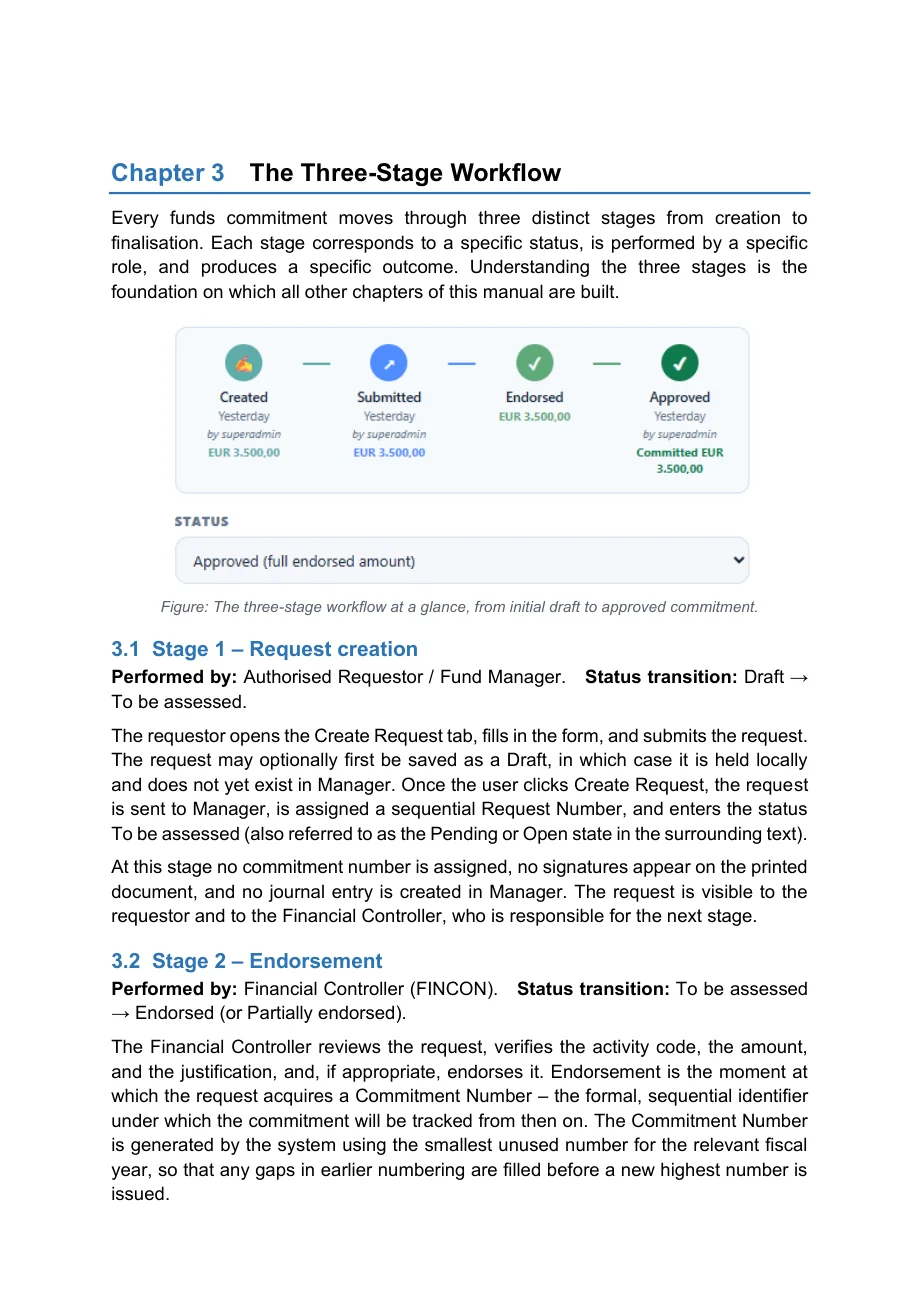
Chapter 3 The Three-Stage Workflow Every funds commitment moves through three distinct stages from creation to finalisation. Each stage corresponds to a specific status, is performed by a specific role, and produces a specific outcome. Understanding the three stages is the foundation on which all other chapters of this manual are built.
Figure: The three-stage workflow at a glance, from initial draft to approved commitment.
3.1 Stage 1 - Request creation Performed by: Authorised Requestor / Fund Manager. Status transition: Draft → To be assessed.
The requestor opens the Create Request tab, fills in the form, and submits the request.
The request may optionally first be saved as a Draft, in which case it is held locally and does not yet exist in Manager. Once the user clicks Create Request, the request is sent to Manager, is assigned a sequential Request Number, and enters the status To be assessed (also referred to as the Pending or Open state in the surrounding text).
At this stage no commitment number is assigned, no signatures appear on the printed document, and no journal entry is created in Manager. The request is visible to the requestor and to the Financial Controller, who is responsible for the next stage.
3.2 Stage 2 - Endorsement Performed by: Financial Controller (FINCON). Status transition: To be assessed → Endorsed (or Partially endorsed).
The Financial Controller reviews the request, verifies the activity code, the amount, and the justification, and, if appropriate, endorses it. Endorsement is the moment at which the request acquires a Commitment Number - the formal, sequential identifier under which the commitment will be tracked from then on. The Commitment Number is generated by the system using the smallest unused number for the relevant fiscal year, so that any gaps in earlier numbering are filled before a new highest number is issued.
Text of this page:
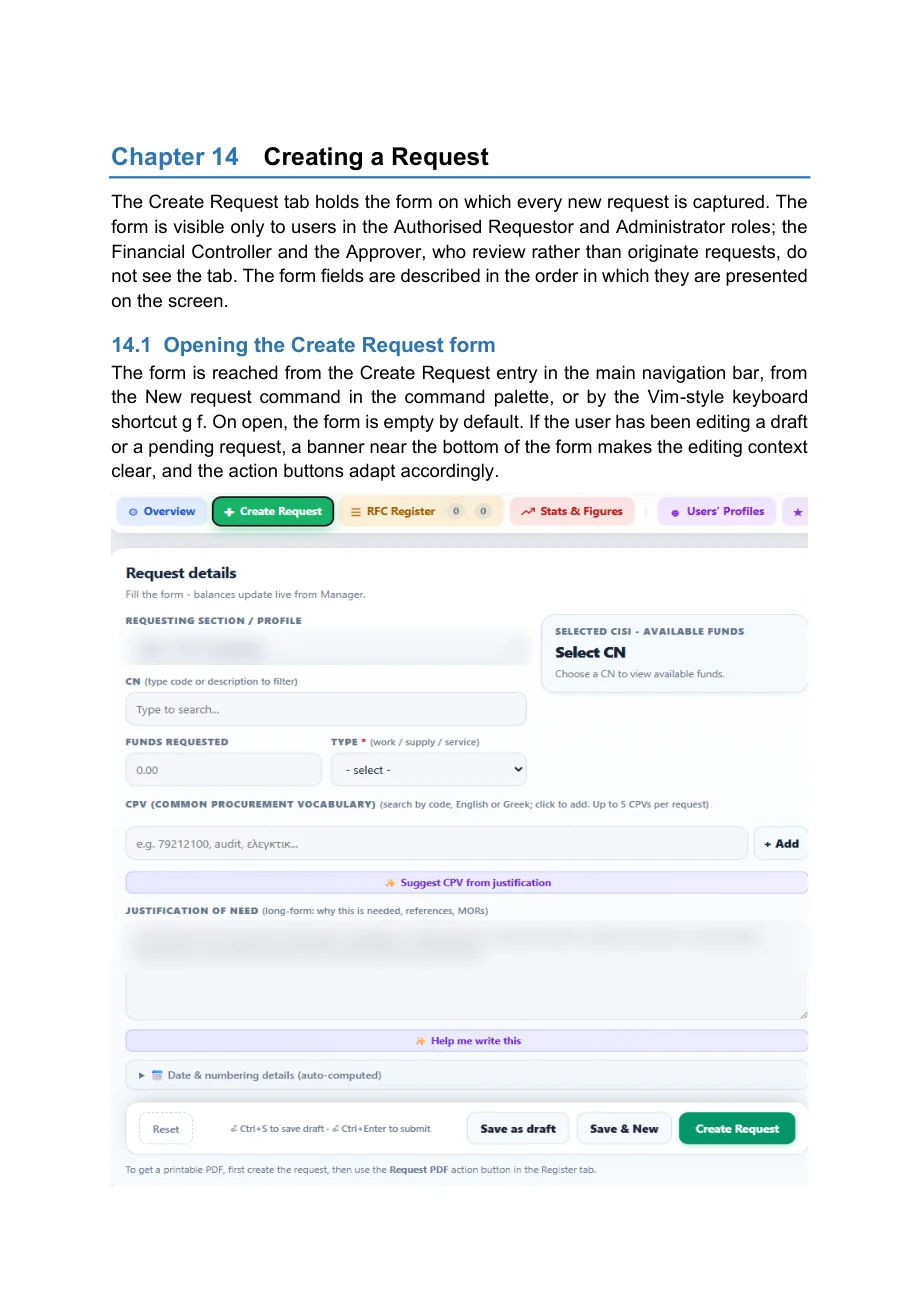
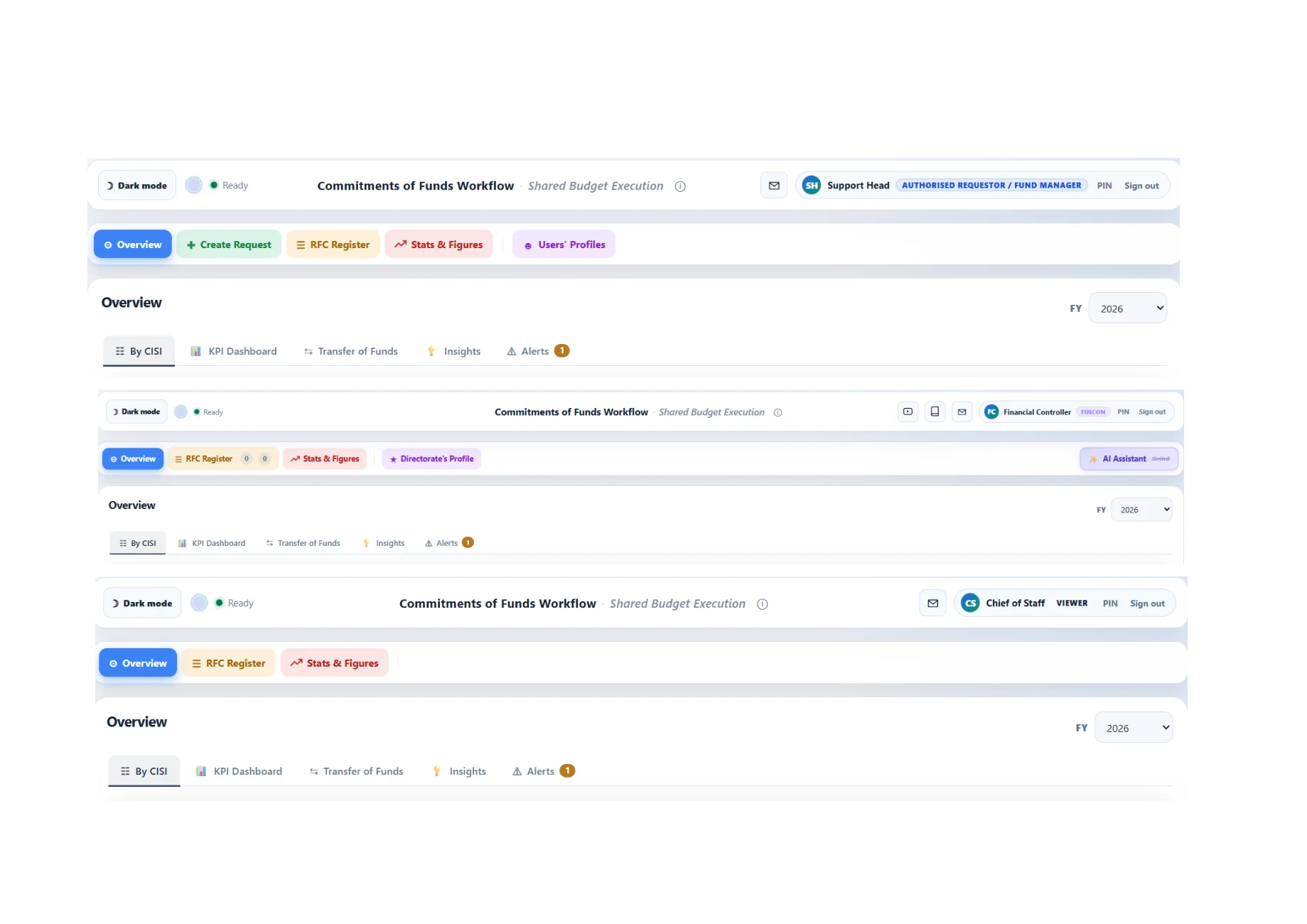
Chapter 14 Creating a Request The Create Request tab holds the form on which every new request is captured. The form is visible only to users in the Authorised Requestor and Administrator roles; the Financial Controller and the Approver, who review rather than originate requests, do not see the tab. The form fields are described in the order in which they are presented on the screen.
14.1 Opening the Create Request form The form is reached from the Create Request entry in the main navigation bar, from the New request command in the command palette, or by the Vim-style keyboard shortcut g f. On open, the form is empty by default. If the user has been editing a draft or a pending request, a banner near the bottom of the form makes the editing context clear, and the action buttons adapt accordingly.
Text of this page:
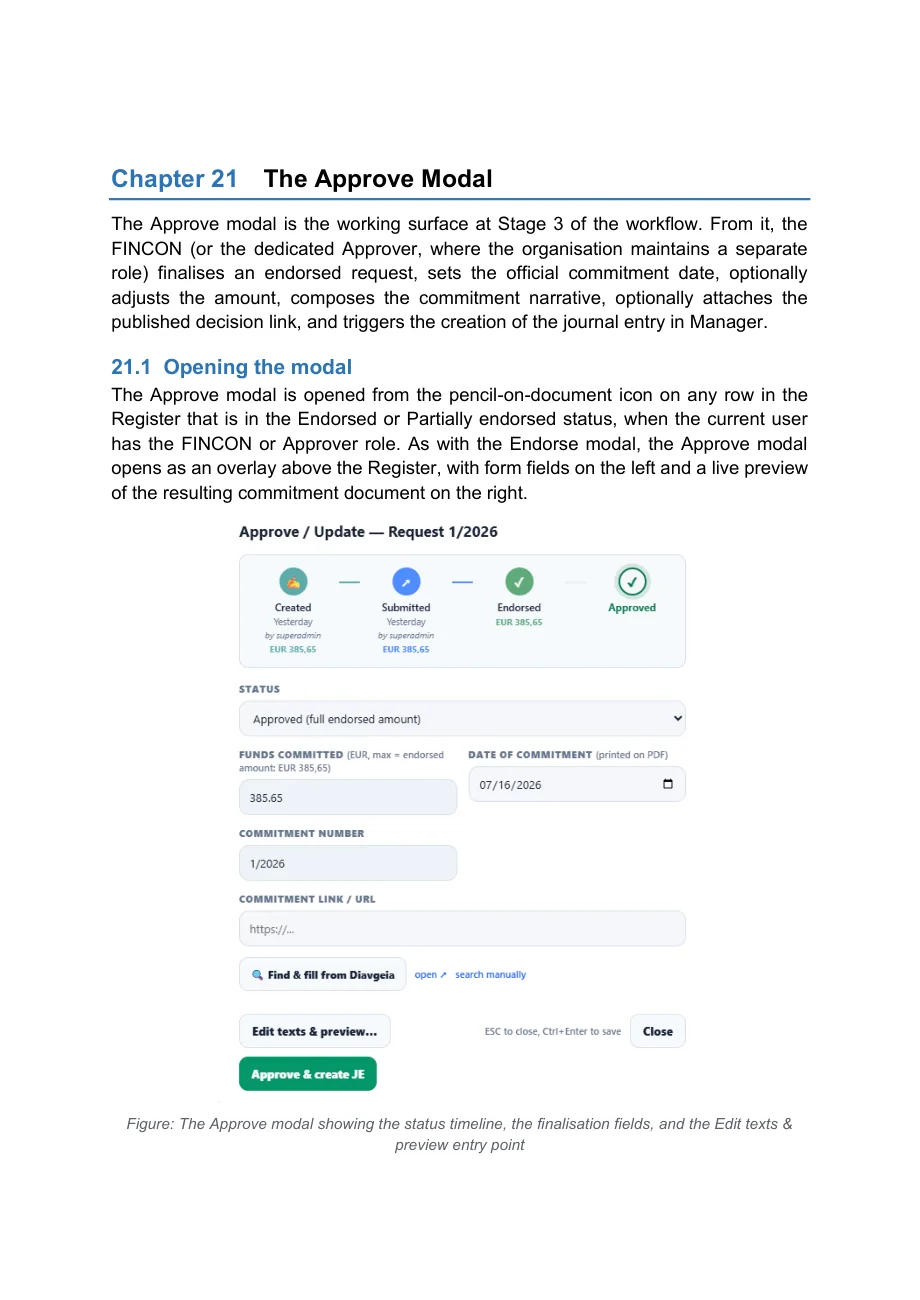
Chapter 21 The Approve Modal The Approve modal is the working surface at Stage 3 of the workflow. From it, the FINCON (or the dedicated Approver, where the organisation maintains a separate role) finalises an endorsed request, sets the official commitment date, optionally adjusts the amount, composes the commitment narrative, optionally attaches the published decision link, and triggers the creation of the journal entry in Manager.
21.1 Opening the modal The Approve modal is opened from the pencil-on-document icon on any row in the Register that is in the Endorsed or Partially endorsed status, when the current user has the FINCON or Approver role. As with the Endorse modal, the Approve modal opens as an overlay above the Register, with form fields on the left and a live preview of the resulting commitment document on the right.
Figure: The Approve modal showing the status timeline, the finalisation fields, and the Edit texts & preview entry point
Text of this page:
Text of this page:
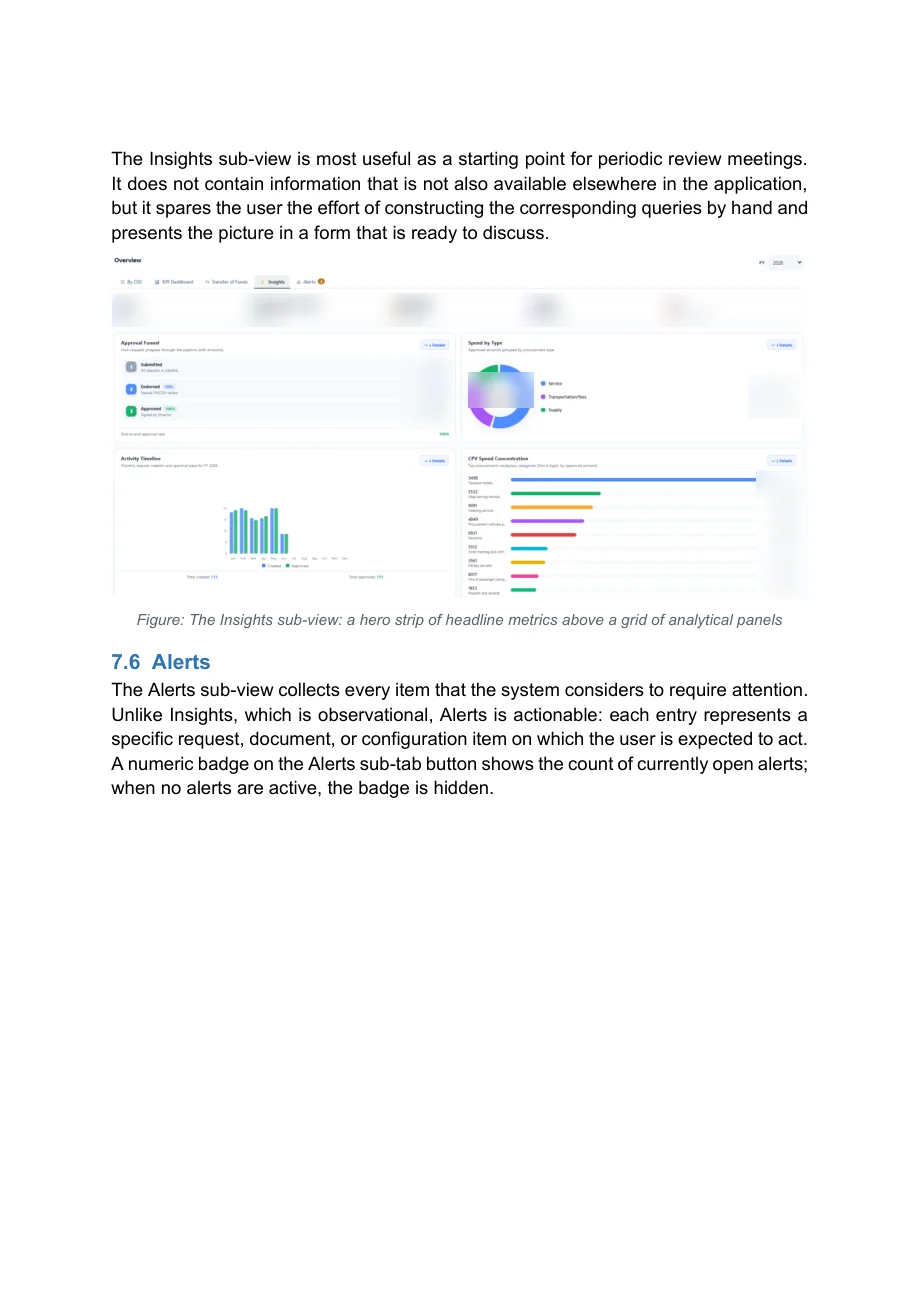
The Insights sub-view is most useful as a starting point for periodic review meetings.
It does not contain information that is not also available elsewhere in the application, but it spares the user the effort of constructing the corresponding queries by hand and presents the picture in a form that is ready to discuss.
Figure: The Insights sub-view: a hero strip of headline metrics above a grid of analytical panels 7.6 Alerts The Alerts sub-view collects every item that the system considers to require attention.
Unlike Insights, which is observational, Alerts is actionable: each entry represents a specific request, document, or configuration item on which the user is expected to act.
A numeric badge on the Alerts sub-tab button shows the count of currently open alerts;
when no alerts are active, the badge is hidden.
Text of this page:
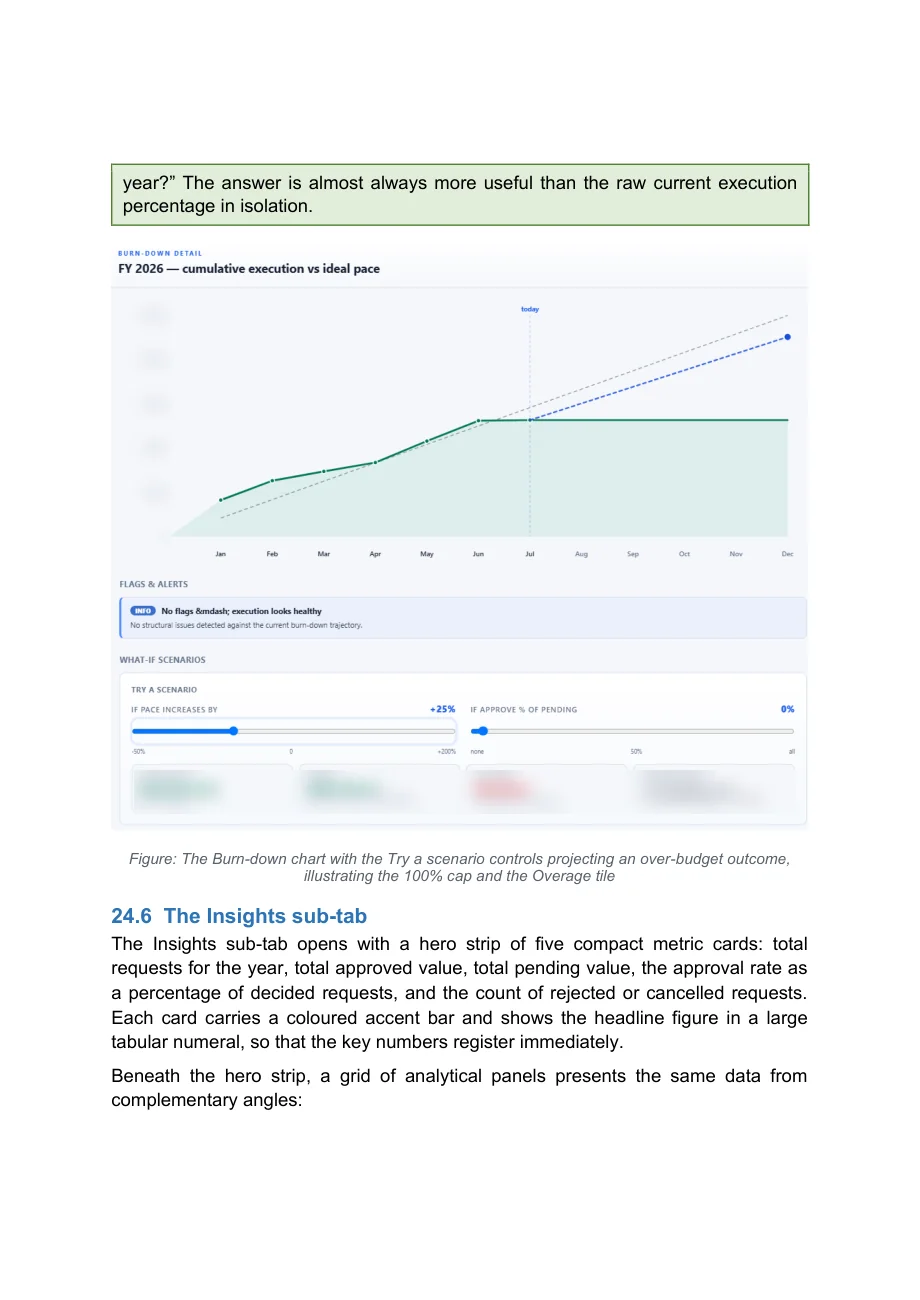
year?” The answer is almost always more useful than the raw current execution percentage in isolation.
Figure: The Burn-down chart with the Try a scenario controls projecting an over-budget outcome, illustrating the 100% cap and the Overage tile 24.6 The Insights sub-tab The Insights sub-tab opens with a hero strip of five compact metric cards: total requests for the year, total approved value, total pending value, the approval rate as a percentage of decided requests, and the count of rejected or cancelled requests.
Each card carries a coloured accent bar and shows the headline figure in a large tabular numeral, so that the key numbers register immediately.
Beneath the hero strip, a grid of analytical panels presents the same data from complementary angles:
Text of this page:
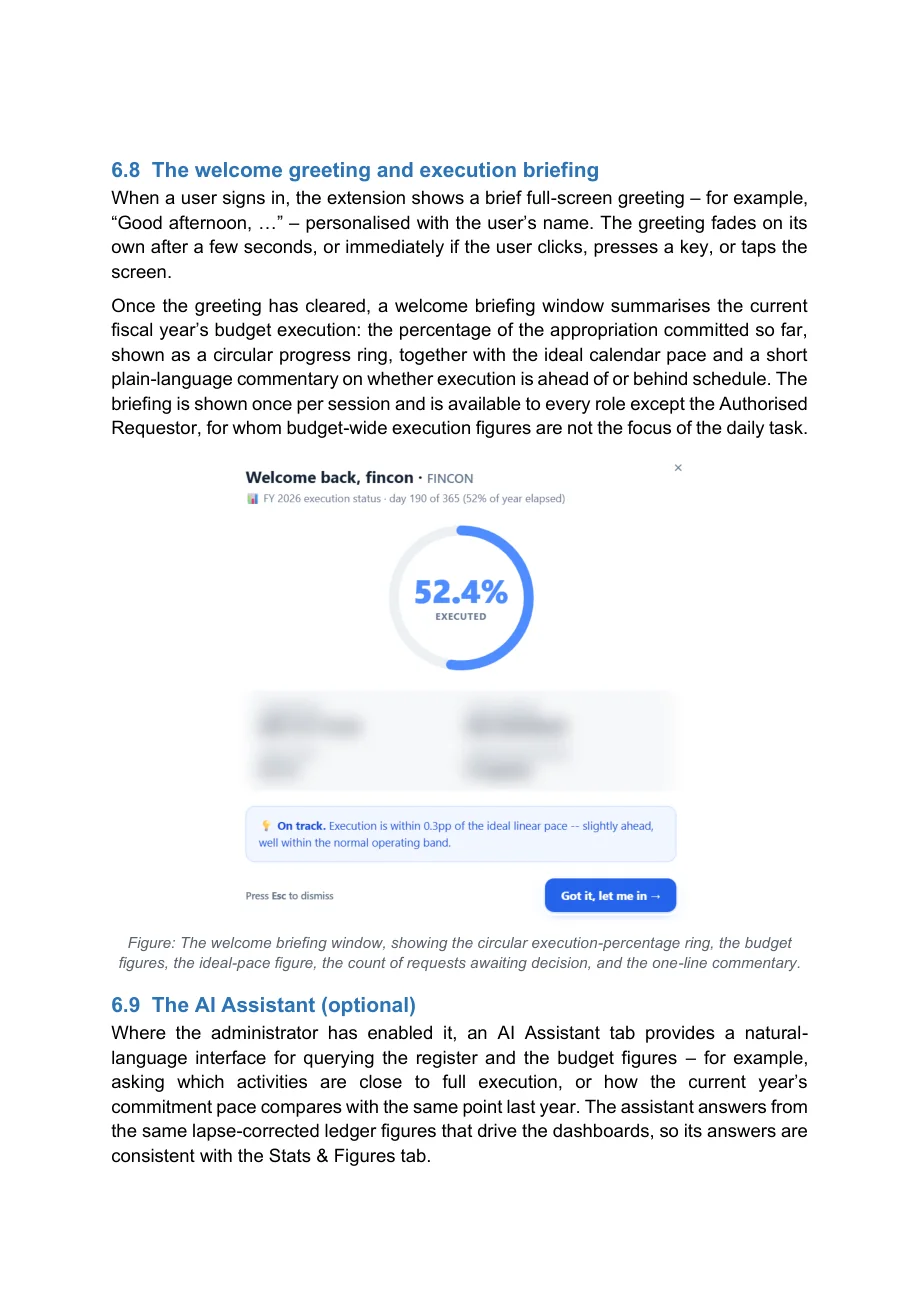
6.8 The welcome greeting and execution briefing When a user signs in, the extension shows a brief full-screen greeting - for example, “Good afternoon, …” - personalised with the user’s name. The greeting fades on its own after a few seconds, or immediately if the user clicks, presses a key, or taps the screen.
Once the greeting has cleared, a welcome briefing window summarises the current fiscal year’s budget execution: the percentage of the appropriation committed so far, shown as a circular progress ring, together with the ideal calendar pace and a short plain-language commentary on whether execution is ahead of or behind schedule. The briefing is shown once per session and is available to every role except the Authorised Requestor, for whom budget-wide execution figures are not the focus of the daily task.
Figure: The welcome briefing window, showing the circular execution-percentage ring, the budget figures, the ideal-pace figure, the count of requests awaiting decision, and the one-line commentary.
6.9 The AI Assistant (optional) Where the administrator has enabled it, an AI Assistant tab provides a naturallanguage interface for querying the register and the budget figures - for example, asking which activities are close to full execution, or how the current year’s commitment pace compares with the same point last year. The assistant answers from the same lapse-corrected ledger figures that drive the dashboards, so its answers are consistent with the Stats & Figures tab.
Programmes and funding
Funded programmes, kept in step with their funders.
Many public bodies run on contributions from several sources or on co-financed programmes. We set up the budgets, the tracking and the reporting that each funder expects, with every cost traced to an approved commitment.
- Programme and project budgets, by funder and by budget line
- Contributions tracked from request to receipt
- Reports and cost statements for funders, with the audit trail behind them
From practice: we have experience in internal control and audit mechanisms for EU co-financed actions.
Applying for a programme? We also prepare the business plan and the funding file.
Training
Training for everyone who touches the budget.
Controls hold only when people understand them. We train each group on your own procedures, with exercises on demo data, and leave a short written guide behind.
Budget holders
Raising a request, reading what is left on a budget line, and planning the year.
Approvers
What to check before endorsing or approving, and what a signature commits.
Finance staff
The procedures, the entries behind each step, and the year-end close.
The experience behind our training
We teach what we have done ourselves.
Our trainers have stood in front of finance officers, budget holders and auditors, in lecture halls and in NATO seminar rooms. Every session we deliver draws on procedures that are running today, so your people learn from practice, not from slides alone.
EU defence budget and finance
Lectures on how the European Union plans, funds and accounts for defence: the budget, its instruments and the controls around them.
Training seminar for NATO-accredited Centres of Excellence
Financial staff from Centres of Excellence trained in configuring and customising the accounting software “Manager” around NATO financial rules.
On the job, every day
Procedures, approvals and year-end closing taught to the people who run them, inside a working NATO financial environment.
SaaS FinOps
Software subscriptions, under the same control.
Subscriptions grow quietly: unused seats, renewals that roll over unnoticed. We bring them under the same discipline as any other commitment.
- Licence inventory
- Every subscription in one register, with its owner, plan and seats.
- Renewals calendar
- Renewal dates and notice periods flagged in time to decide.
- Usage against cost
- Seats in use compared with seats paid for, subscription by subscription.
How we work
From diagnosis to handover.
Diagnose
We review your budget cycle, procedures, approval paths and ledger, and name the gaps that matter at audit.
Design
We draft the procedures, approval matrix and commitment flow with you, sized to your rules and your team.
Implement
We put them into practice, in the accounting software “Manager” or alongside your current system, and run the first cycles with your staff.
Hand over
Training, written guides and a closing review, so your people run the controls without us.
Strengthen your controls before the next audit.
Tell us how a request becomes a payment today. We reply within 2 working days.
We respond to RFP and RFQ invitations.